How Your Insurance AI Receptionist Works
Your AI receptionist answers forwarded agency calls, collects the details you specify, and sends your team a record of the conversation. Try the browser demo, then set up your agency through an onboarding chat.
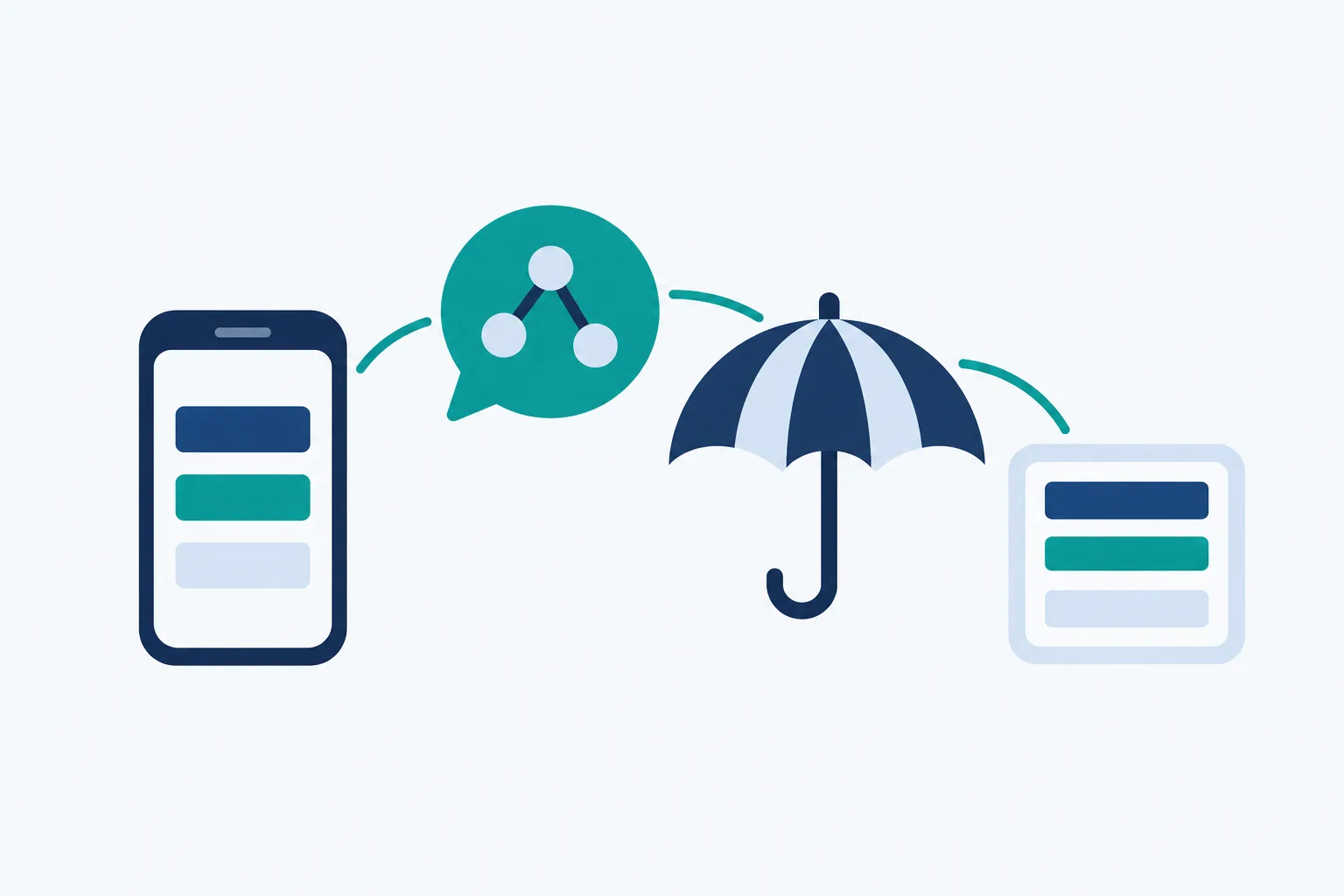
How it works in four steps
- Forward your numberChoose full forwarding or send only unanswered, busy or after-hours calls using your carrier's guide.
- Answer as your agencyYour receptionist identifies itself as a virtual assistant, announces recording, and asks your intake questions.
- Receive the detailsEmail and app push alerts bring call summaries, while appointments can be booked into Google Calendar.
- Test before going liveMake a test call, check the result, and enable forwarding when your setup is ready.
Keep Your Number and Choose Which Calls to Forward
You keep your business number and choose which calls reach your receptionist. Forward all calls, or use it when your line is busy, unanswered or outside office hours.
Full forwardingSend incoming agency calls to your receptionist throughout the day.
Overflow coverageRoute busy or unanswered calls while your team handles other conversations.
After-hours answeringForward calls outside office hours so clients can leave detailed requests.
Full details
Your existing number remains the number clients dial. We provide a local number in your area code and forwarding instructions for your carrier or phone system. Choose the forwarding option that fits how your office handles calls.
An agency with a staffed front desk might forward only busy or unanswered calls. An office that closes in the evening might use after-hours forwarding. Calls must reach the forwarding number for the receptionist to answer them. You check that route with a test call before going live.
Hear the Greeting and Intake Your Callers Receive
Your receptionist answers as your agency, discloses that it is a virtual assistant and announces recording. It then collects the request using your agency's instructions.
Clear introductionCallers hear the virtual assistant and recording notices at the start.
Agency instructionsYour onboarding answers define services, hours, intake questions and urgent call handling.
Language choiceCallers can speak English or Spanish and switch during the conversation.
Full details
The onboarding chat and your website give your receptionist the agency information it needs. You explain your services, service area, hours and what counts as urgent. A new quote caller can leave details for an agent; a certificate caller can describe the document they need.
Your receptionist does not quote premiums, bind coverage or answer coverage questions. Those requests become messages for a licensed agent. Urgent claims go to the carrier's claims line first, followed by a message for your agency. Hear the process in the interactive call demo.
Get Call Records, Urgent Transfers and Appointment Details
You receive an email and app push notification for each call, including a summary, urgency tag, transcript and recording. Your dashboard keeps calls, usage and settings together.
Call alertsRead the summary and urgency tag in email and app push notifications.
Urgent routingSet the order for warm transfers or pages to your on-call contacts.
AppointmentsBook into Google Calendar or collect details for your team's callback.
Full details
A daily digest email helps you review the day's activity alongside individual call alerts. Open the dashboard when you need the transcript or recording to check what a caller said. You can use the summary to enter the request into your agency's own records.
For an urgent transfer, your on-call person hears a short summary first and presses 1 to accept. You can choose a page instead and set the contact order. For routine appointment requests, choose Google Calendar booking or a message with the details your team needs to call back.
Test Your Setup and Change Instructions Later
A test call lets you check the greeting, intake and routing before forwarding client calls. Later, you change settings by telling the AI what your agency needs.
Check the greetingHear your agency introduction and the required assistant and recording notices.
Review the resultInspect the call summary, transcript and recording after your test.
Update instructionsTell the AI when hours, services or urgent contacts change.
Full details
Use your test call to act out a request your agency receives regularly. Ask for an auto quote, request a certificate or ask about an existing policy. Check whether the summary gives your team enough detail for a useful callback.
Test your urgent contact route too, including who receives the call and the order you set. If the result needs adjustment, change the instructions in plain words and test again. Request a free trial; when your trial is ready, use the emailed sign-in link to finish onboarding and put your forwarding choice into use.
FAQ
Can I keep my agency's existing phone number?
Yes. Clients continue dialing your existing agency number, and forwarding sends the calls you choose to your receptionist. We provide a local number and a forwarding guide for your carrier or phone system. Test that route before sending client calls through it.
What does the AI do when it cannot answer?
Your receptionist takes the caller's details and the question for your team to review. Coverage advice, premium quotes and binding requests go to a licensed agent. Set your intake instructions so the message includes what your agency needs for the callback.
How do urgent calls reach my on-call person?
You choose warm transfer or paging and set the order of your urgent contacts. With a warm transfer, the person answering hears a short summary and presses 1 to take the call. Urgent claims are directed to the carrier's claims line first.
Where do I receive messages after a call?
Call alerts arrive by email and app push notification with a summary, urgency tag, transcript and recording. Your dashboard also holds calls and their records, and you receive a daily digest email. Use those details to decide what your team should handle next.
Can the receptionist book appointments for an agent?
Yes. Your receptionist can book appointments into Google Calendar, or it can take the caller's details for your agency to arrange a callback. Choose the approach during setup. Appointment booking does not authorize the receptionist to quote premiums or make coverage decisions.
Will clients know they are speaking with AI?
Yes. The greeting says the receptionist is a virtual assistant and that the call is recorded. Both notices are part of each call and cannot be switched off. The browser demo lets you hear that introduction now; agency trials will open later.
Try an Agency Call in the Browser Demo
Talk to the demo without signing up, then request a free trial to enter your agency's instructions and test your forwarding setup.